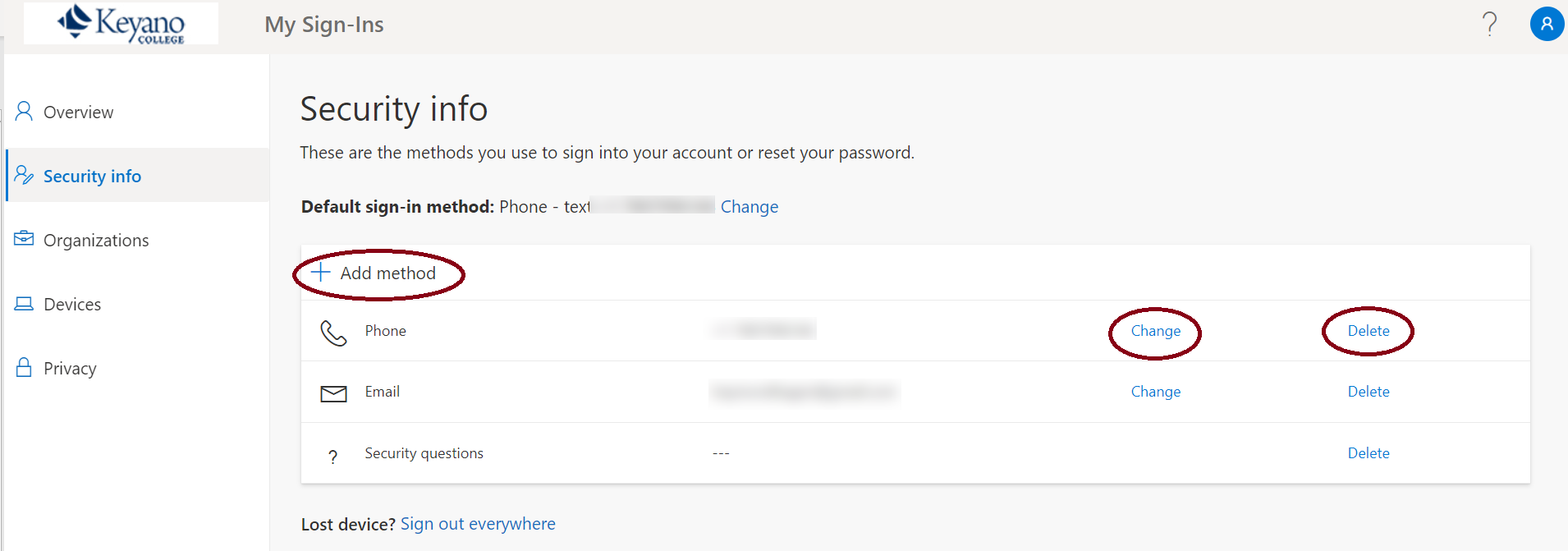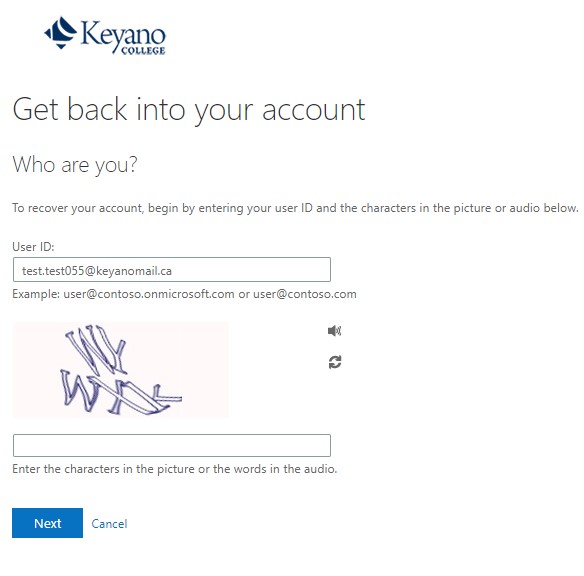
To protect your information, Keyano uses the Microsoft authentication system. The system requires all Keyano account holders (students and employees) to setup two methods to authenticate their account. These additional authentication methods will be used verify users when resetting passwords and with multi-factor authentication (MFA).
The first time you login to Keyanomail or iLearn (Moodle), you will be prompted to setup your authentication methods.
- Go to Keyanomail.ca or iLearn.keyano.ca (Moodle)
- Enter your Keyano email address and click Next button
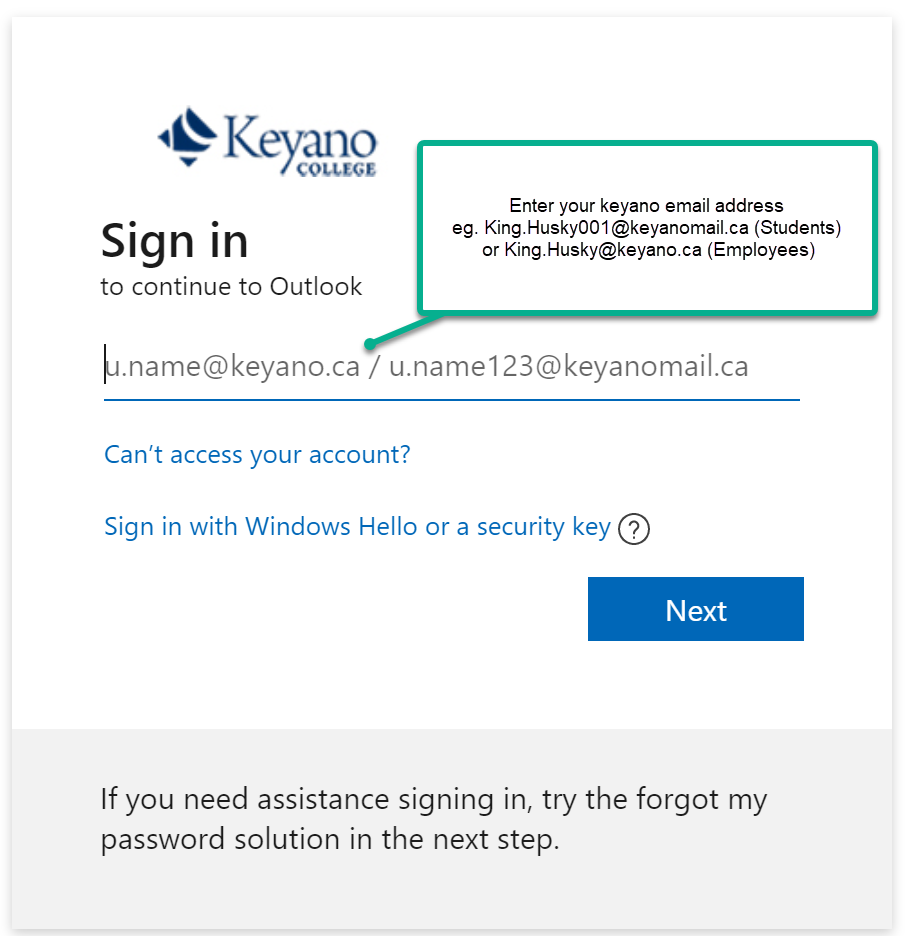
- Enter your Keyano password and click Sign-in button
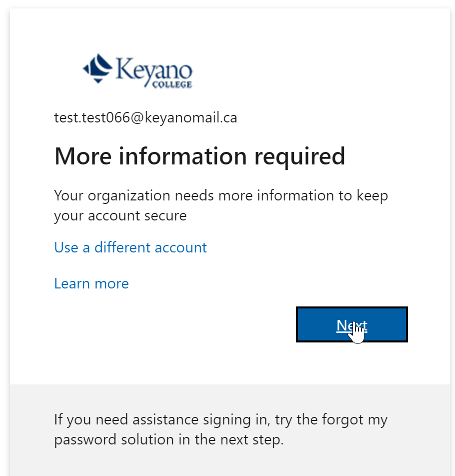
- The More Information required message will appear, click Next button
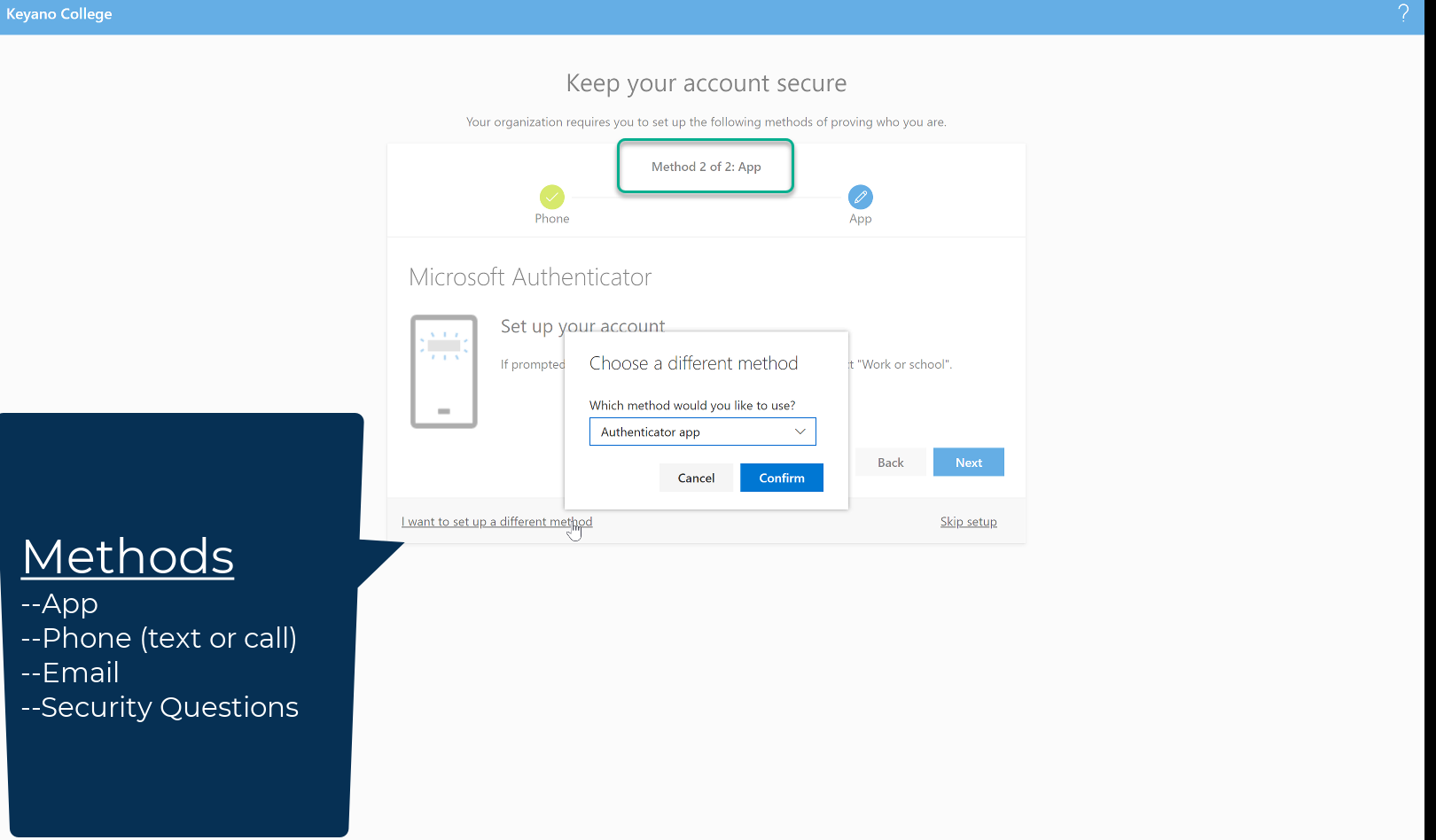
- The Microsoft Authenticator dialog box appears prompting you select a method to authenticate your Keyano account. Keyano requires two authentication methods be setup to secure your information. The authentication methods are:
- Authentication app
- Phone – a verification code text or call
- Email – a verification code is sent to a non-Keyano email address
- Security Questions – select 3 security questions to verify your account
Click on “I want to setup a different method” and select an authentication method, Click Confirm, Click Next
- Follow instructions provided to setup your first authentication method.
- After you have setup your first authentication method, you will be prompted to setup a second method. Select a second authentication method and follow the instructions to setup your authentication method.
- After you have setup your two authentication methods, the following "Success!" page will appear. Click Done to proceed to your application.
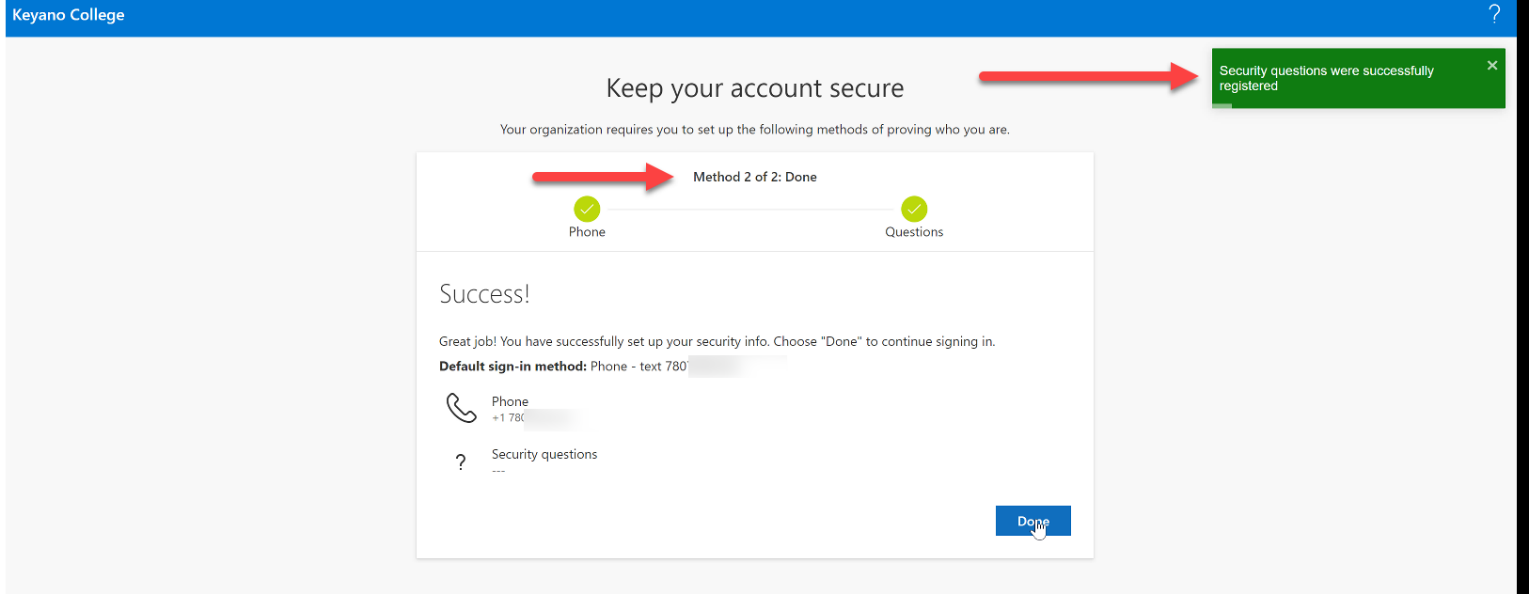
- From here on when you try to log in using your Keyano account, after putting in your password there will be an additional prompt to verify your account. Follow the on-screen prompt. Following are a couple of examples for demonstration:
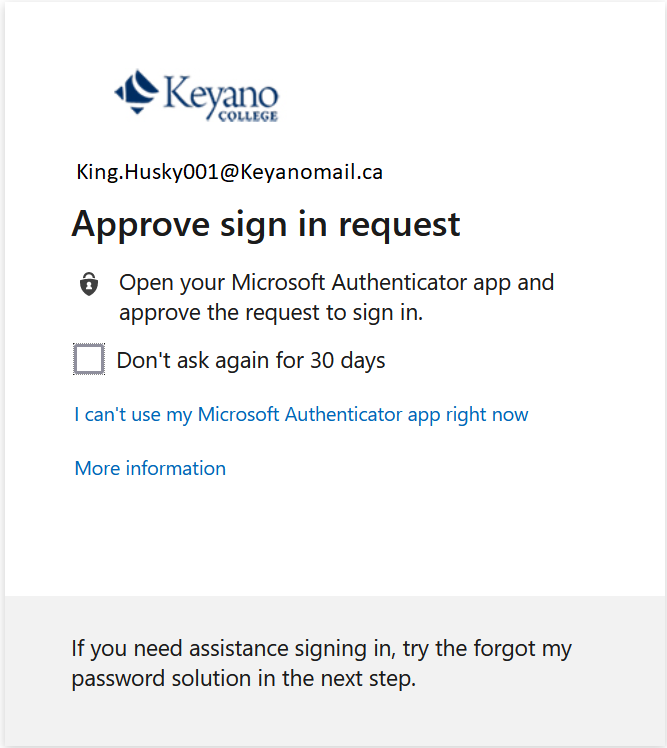
Authenticator app verification prompt
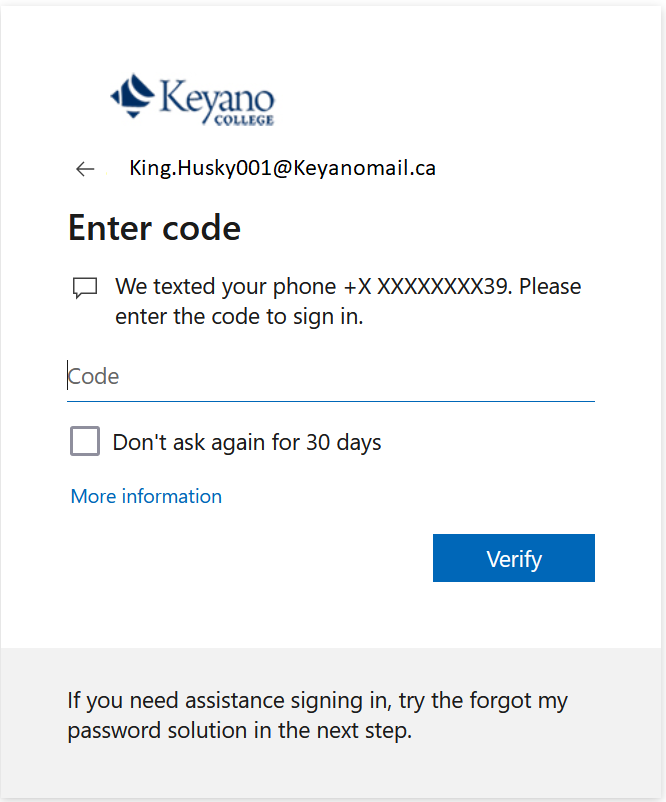
Text verification prompt
- After secondary verification you will have access to your Keyano account.